


If you’ve ever opened your website only to see the ERR_TOO_MANY_REDIRECTS error, you’re not alone. This frustrating issue affects thousands of WordPress websites, eCommerce stores, and business websites every day.
The good news? In most cases, the problem is caused by a simple configuration mistake and can be fixed without rebuilding your website.
In this guide, I’ll explain what the ERR_TOO_MANY_REDIRECTS error means, why it happens, and how to fix it step by step. Whether you’re using WordPress, Cloudflare, Apache, Nginx, or another hosting environment, you’ll find practical solutions you can apply immediately.
Quick Answer
ERR_TOO_MANY_REDIRECTS occurs when a browser gets stuck in an endless redirect loop. Instead of loading the requested page, the server repeatedly redirects the browser between two or more URLs until the browser stops the process and displays the error.
The most common causes include:
- Incorrect WordPress URL settings
- Misconfigured SSL or HTTPS redirects
- Cloudflare SSL settings conflicts
- Faulty redirect plugins
- Incorrect
.htaccessrules - Nginx or Apache redirect misconfigurations
- Browser cookies and cache
- Redirect chains created by multiple plugins
What Is ERR_TOO_MANY_REDIRECTS?
ERR_TOO_MANY_REDIRECTS is a browser error indicating that your browser encountered an infinite redirect loop while trying to load a webpage.
Instead of displaying the requested page, the browser keeps receiving redirect instructions such as:
example.com
↓
www.example.com
↓
https://example.com
↓
http://example.com
↓
www.example.com
↓
https://example.com
...
Since this cycle never ends, modern browsers eventually stop following redirects and display the error.
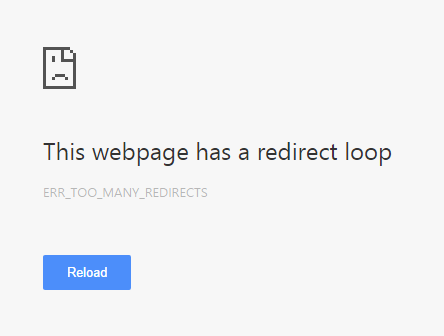
Depending on the browser, you may see messages like:
Google Chrome
ERR_TOO_MANY_REDIRECTS
Firefox
The page isn’t redirecting properly.
Microsoft Edge
This page isn’t working right now.
Although the wording differs, all these messages point to the same underlying problem: a redirect loop.
What Is a Redirect?
Before fixing the error, it’s helpful to understand how redirects work.
A redirect is an instruction from a web server telling the browser to load a different URL instead of the one originally requested.
For example:
http://example.com

↓

https://example.com
This is completely normal.
Redirects are commonly used for:
- Migrating from HTTP to HTTPS
- Changing domain names
- Moving pages
- Consolidating duplicate URLs
- Improving SEO
- Managing website maintenance
When configured correctly, redirects improve both user experience and search engine crawling.
What Is a Redirect Loop?
A redirect loop occurs when two or more redirect rules conflict with each other.
For example:
URL A

↓

Redirect to URL B

↓

Redirect back to URL A

↓

Redirect to URL B

↓

Redirect to URL A

...
Because the browser never reaches the final destination, it eventually stops trying and displays ERR_TOO_MANY_REDIRECTS.
Think of it like someone giving you directions:
“Go to Room B.”
Once you reach Room B, another person tells you:
“No, go back to Room A.”
When you return to Room A, you’re again told to go to Room B. You keep walking between the two rooms without ever reaching your destination.
A redirect loop works the same way.
Why Does ERR_TOO_MANY_REDIRECTS Happen?
There isn’t a single cause for this error. In my experience troubleshooting WordPress and business websites, it’s usually the result of multiple systems trying to control redirects at the same time.
Here are the most common causes.
1. Incorrect WordPress Address Settings
WordPress stores two important URLs:
- WordPress Address (URL)
- Site Address (URL)
If one uses:
http://
and the other uses:
https://
or one includes www while the other doesn’t, WordPress can repeatedly redirect visitors between the two versions.
This is one of the most common causes of redirect loops after migrating a website or installing an SSL certificate.
2. SSL or HTTPS Configuration Problems
After enabling HTTPS, websites often use automatic redirects such as:
HTTP → HTTPS
However, if another service—such as your hosting provider or CDN—also performs the same redirect, they may conflict with each other.
For example:
Server:
HTTP → HTTPS
Cloudflare:
HTTPS → HTTP
The browser keeps switching between both versions without ever loading the page.
3. Misconfigured Cloudflare Settings
Cloudflare offers several SSL modes:
- Off
- Flexible
- Full
- Full (Strict)
Using Flexible SSL on a server that’s already forcing HTTPS is a common source of redirect loops.
Cloudflare and your origin server end up sending conflicting redirect instructions, creating an endless cycle.
4. Faulty Redirect Plugins
Many WordPress plugins can create redirects, including:
- SEO plugins
- Redirection plugins
- Security plugins
- Membership plugins
- WooCommerce plugins
- Caching plugins
If multiple plugins attempt to redirect the same URL differently, they can accidentally create a loop.
For example:
Plugin A redirects:
Page A → Page B
Plugin B redirects:
Page B → Page A
The result is an endless redirect cycle.
5. Incorrect .htaccess Rules
On Apache servers, the .htaccess file controls many redirect rules.
A single incorrect rewrite condition can repeatedly redirect visitors between HTTP, HTTPS, www, and non-www versions of your site.
Even a small typo in a rewrite rule can affect every page on your website.
6. Nginx Configuration Errors
If your website runs on Nginx, redirect rules are usually stored in the server configuration.
Problems often occur when:
- HTTP and HTTPS rules conflict
- Multiple server blocks handle the same domain
- Reverse proxy settings are incorrect
- SSL redirects are duplicated
These issues are especially common after server migrations or manual configuration changes.
7. Browser Cache and Cookies
Sometimes, the website itself is working correctly, but your browser has cached an outdated redirect or stored cookies from a previous configuration.
In these cases, simply clearing your browser cache and cookies can resolve the issue without making any changes to the website.
8. CDN or Reverse Proxy Conflicts
If you’re using a content delivery network (CDN) or reverse proxy, redirect rules may exist in multiple locations:
- Web server
- CDN
- Firewall
- Load balancer
- Hosting control panel
When more than one layer attempts to manage redirects independently, they can unintentionally create a loop.
Common Signs of ERR_TOO_MANY_REDIRECTS
Before troubleshooting, it’s useful to recognize the signs of a redirect loop.
You may notice:
- Your website never finishes loading.
- The browser repeatedly refreshes the page.
- Chrome displays ERR_TOO_MANY_REDIRECTS.
- Firefox reports that the page isn’t redirecting properly.
- Pages switch between HTTP and HTTPS.
- The URL changes continuously.
- Only logged-in users experience the problem.
- The issue appears immediately after installing an SSL certificate, changing your domain, or activating a plugin.
Identifying these symptoms early can help you narrow down the root cause and apply the correct fix more quickly.
How to Fix ERR_TOO_MANY_REDIRECTS (Step-by-Step)
Once you’ve identified that your website is experiencing a redirect loop, it’s time to troubleshoot the issue. I recommend following these solutions in order, starting with the easiest fixes before moving on to advanced server configurations.
Many website owners jump straight into editing server files, but in my experience, simple issues like cached cookies, incorrect WordPress URLs, or a plugin conflict are responsible for most redirect loops.
1. Clear Your Browser Cache and Cookies
Browsers store cookies and cached redirects to improve loading speed. If your website recently changed its redirect rules or SSL configuration, your browser may still be trying to follow an outdated redirect.
In Google Chrome:
- Press Ctrl + Shift + Delete (Windows) or Command + Shift + Delete (Mac).
- Select Cookies and other site data.
- Select Cached images and files.
- Click Delete Data.
- Restart your browser.
After clearing your cache, revisit your website in a private browsing window to see whether the problem has been resolved.
2. Open Your Website in Incognito Mode
Testing your website in an Incognito or Private window helps determine whether the issue is browser-related.
If the website works in Incognito mode but not in a normal browser window, the problem is likely caused by cached data, cookies, or a browser extension rather than your website.
3. Check Your WordPress URL Settings
Incorrect WordPress URLs are among the most common causes of redirect loops.
Navigate to:
Settings → General
Verify that both fields are identical.
WordPress Address (URL)
https://example.com
Site Address (URL)
https://example.com
Avoid mixing:
- HTTP and HTTPS
- www and non-www versions
Even a small mismatch can create an endless redirect cycle.
H3: 4. Update WordPress URLs Using wp-config.php
If you can’t access the WordPress dashboard, you can manually define the site URLs.
Open the wp-config.php file and add:
define('WP_HOME','https://example.com');
define('WP_SITEURL','https://example.com');
Replace the domain with your own.
This overrides incorrect database values and often restores access to the WordPress dashboard.
5. Disable All WordPress Plugins
Plugins that manage redirects, caching, security, or logins can accidentally create redirect loops.
If you can access your dashboard:
- Go to Plugins
- Select all plugins
- Click Deactivate
If you cannot log in:
Rename the plugins folder inside:
wp-content/plugins
to
plugins-disabled
WordPress automatically disables every plugin.
If the website starts working, reactivate plugins one at a time until you find the one causing the issue.
Common offenders include:
- Redirect plugins
- Cache plugins
- Security plugins
- Membership plugins
- WooCommerce extensions
- SEO plugins with redirect features
6. Switch to a Default WordPress Theme
Some themes contain custom redirect logic or outdated code that conflicts with newer WordPress versions.
Rename your active theme folder or activate a default WordPress theme such as Twenty Twenty-Five.
If the redirect loop disappears, your theme requires debugging or an update.
7. Clear Your Website Cache
If your website uses a caching plugin, clear all caches before testing again.
Popular caching plugins include:
- LiteSpeed Cache
- WP Rocket
- FlyingPress
- WP Super Cache
- W3 Total Cache
Also clear:
- Server cache
- CDN cache
- Browser cache
- Object cache
- Redis or Memcached cache (if enabled)
Old cached redirect rules often continue causing problems even after you’ve fixed the configuration.
Fixing ERR_TOO_MANY_REDIRECTS in Cloudflare
Cloudflare is one of the biggest sources of redirect loops because both Cloudflare and the origin server can control HTTPS redirects.
H3: Check SSL Mode
Open your Cloudflare Dashboard.
Go to:
SSL/TLS → Overview
Choose one of these modes:
✅ Full
or
✅ Full (Strict)
Avoid using Flexible SSL if your hosting server already redirects HTTP to HTTPS.
Flexible SSL frequently creates an endless redirect cycle.
Review Redirect Rules
Navigate to:
Rules → Redirect Rules
Look for rules that redirect:
- HTTP → HTTPS
- HTTPS → HTTP
- www → non-www
- non-www → www
Delete duplicate or conflicting rules.
Disable “Always Use HTTPS” Temporarily
Cloudflare also includes an Always Use HTTPS option.
If your hosting provider already forces HTTPS, temporarily disable this feature to determine whether it is creating duplicate redirects.
Fixing ERR_TOO_MANY_REDIRECTS in Apache
Apache users should inspect the .htaccess file carefully.
Locate:
public_html/.htaccess
Before making changes, create a backup.
A standard HTTPS redirect looks like:
RewriteEngine On

RewriteCond %{HTTPS} !=on
RewriteRule ^ https://%{HTTP_HOST}%{REQUEST_URI} [L,R=301]
Avoid multiple HTTPS rules or duplicate rewrite conditions.
Also check for plugins that automatically edit your .htaccess file.
Fixing ERR_TOO_MANY_REDIRECTS in Nginx
Nginx redirect rules are stored inside server block configuration files.
Common locations include:
/etc/nginx/sites-enabled/
or
/etc/nginx/sites-available/
Verify that:
- Only one HTTPS redirect exists.
- Only one server block handles your domain.
- Reverse proxy settings aren’t conflicting.
- SSL certificates are correctly configured.
After editing your configuration, always test it.
sudo nginx -t
Then reload Nginx.
sudo systemctl reload nginx
Fix SSL Certificate Problems
Redirect loops commonly appear after installing an SSL certificate.
Verify that:
- The certificate is valid.
- It hasn’t expired.
- The certificate covers your domain.
- HTTPS loads successfully.
- Intermediate certificates are installed.
If HTTPS isn’t functioning correctly, browsers may become trapped between HTTP and HTTPS versions.
Review Your Redirect Plugins
Many WordPress websites use redirect management plugins.
Check whether your website uses plugins like:
- Redirection
- Rank Math
- Yoast SEO Premium
- All in One SEO
- Really Simple SSL
Look for duplicate redirect rules.
For example:
Old URL

↓

New URL

↓

Old URL
Even two simple redirects can create an infinite loop.
Inspect Redirect Chains
Instead of guessing, inspect the redirect path.
Excellent tools include:
- Redirect Path Chrome Extension
- Screaming Frog SEO Spider
- Ahrefs Site Audit
- Semrush Site Audit
- Browser Developer Tools
- cURL
A redirect chain might look like this:
http://example.com

↓

301

↓

https://www.example.com

↓

302

↓

https://example.com

↓

301

↓

http://example.com
The final redirect back to the original URL confirms the existence of a redirect loop.
Check Recent Website Changes
Ask yourself:
- Did you install a new plugin?
- Did you migrate hosting?
- Did you change your domain?
- Did you enable Cloudflare?
- Did you modify
.htaccess? - Did you update Nginx or Apache?
- Did you install a new SSL certificate?
- Did you change DNS settings?
If the redirect loop started immediately after one of these changes, you’ve likely identified the root cause.
Quick Troubleshooting Checklist
Before moving to advanced diagnostics, make sure you’ve completed the following:
- Cleared browser cache and cookies.
- Tested the site in Incognito mode.
- Verified WordPress URLs.
- Disabled all plugins.
- Switched to a default theme.
- Cleared website and server caches.
- Reviewed Cloudflare SSL settings.
- Checked the SSL certificate.
- Inspected
.htaccessor Nginx configuration. - Reviewed redirect rules.
- Checked recent website changes.
H2: How to Diagnose a Redirect Loop Like a Developer
If you’ve tried the common fixes and your website still displays the ERR_TOO_MANY_REDIRECTS error, it’s time to diagnose the redirect loop more systematically. Understanding where the loop begins will help you resolve the issue much faster.
H3: Use Browser Developer Tools
Modern browsers allow you to inspect every request made while loading a webpage.
In Google Chrome:
- Press F12 or Ctrl + Shift + I.
- Open the Network tab.
- Reload your website.
- Look for requests with 301 or 302 status codes.
If you notice the browser requesting the same URL repeatedly or bouncing between two URLs, you’ve found the redirect loop.
H3: Use cURL to Check Redirects
If you have SSH access, use the following command:
curl -I -L https://yourdomain.com
The response headers will show every redirect the browser follows. This is one of the quickest ways to identify whether the loop is happening on your server, CDN, or application.
H3: Use an Online Redirect Checker
Several free tools visualize redirect chains, making them easier to understand.
Recommended options include:
- Redirect Checker
- HTTP Status Checker
- Redirect Path Chrome Extension
- Screaming Frog SEO Spider
- Ahrefs Site Audit
- Semrush Site Audit
These tools reveal whether your redirects are working correctly or looping indefinitely.
Common ERR_TOO_MANY_REDIRECTS Scenarios
After Installing an SSL Certificate
Many website owners experience redirect loops immediately after switching from HTTP to HTTPS.
This usually happens because both the web server and a CDN are forcing HTTPS simultaneously.
Solution:
- Use Full (Strict) SSL in Cloudflare.
- Remove duplicate HTTPS redirect rules from
.htaccessor Nginx. - Ensure WordPress URLs use HTTPS consistently.
After Migrating to a New Hosting Provider
A migration can introduce conflicting server configurations.
Check:
- WordPress URLs
- SSL certificate
.htaccess- Nginx configuration
- DNS settings
- CDN settings
Many hosting providers automatically force HTTPS, so remove any duplicate rules left over from your previous server.
After Changing Your Domain Name
When changing domains, verify that:
- Internal links use the new domain.
- WordPress Address and Site Address are updated.
- Old redirects point only to the new domain.
- There are no redirects back to the old domain.
After Enabling Cloudflare
Cloudflare should complement your server settings, not duplicate them.
Review:
- SSL mode
- Redirect Rules
- Always Use HTTPS
- Page Rules
- Origin certificate
Avoid configuring the same redirect in multiple places.
Best Practices to Prevent Redirect Loops
Preventing redirect loops is much easier than fixing them.
Follow these best practices to keep your website running smoothly.
Use Only One HTTPS Redirect
Choose a single place to manage HTTPS redirects:
- Web server
- CDN
- Hosting control panel
Avoid enabling HTTPS redirects in multiple services simultaneously.
Keep WordPress URLs Consistent
Use one preferred version of your website.
For example:
https://example.com
or
https://www.example.com
Don’t mix both versions unless you’ve configured redirects correctly.
Audit Redirect Rules Regularly
Review redirect rules whenever you:
- Change hosting
- Install plugins
- Migrate domains
- Update SSL certificates
- Enable a CDN
Regular audits prevent outdated or duplicate rules from accumulating.
Limit Redirect Chains
A visitor should ideally reach the final page after a single redirect.
Example:
Good:
HTTP

↓

HTTPS
Avoid:
HTTP

↓

HTTPS

↓

WWW

↓

NON-WWW

↓

Another URL
Long redirect chains slow down websites and increase the likelihood of loops.
Test Before Deploying Changes
Whenever you modify server configurations or install new plugins, test your website in:
- Chrome
- Firefox
- Microsoft Edge
- Mobile browsers
- Incognito mode
This helps identify redirect issues before they affect visitors.
Key Takeaways
The ERR_TOO_MANY_REDIRECTS error can seem intimidating, but it’s usually caused by a configuration conflict rather than a serious website failure.
The most common causes include:
- Incorrect WordPress URL settings
- Conflicting HTTP and HTTPS redirects
- Cloudflare SSL misconfiguration
- Faulty plugins or themes
- Duplicate
.htaccessrules - Nginx configuration errors
- Cached browser data
- Multiple redirect rules across different services
By following a structured troubleshooting process—starting with browser checks and moving to WordPress, server, and CDN settings—you can resolve most redirect loops without rebuilding your website.
Final Thoughts
The ERR_TOO_MANY_REDIRECTS error is one of the most common website issues faced by WordPress users, developers, and site administrators. While it may appear alarming, the solution is often straightforward once you identify where the redirect loop originates.
Instead of making random configuration changes, take a systematic approach. Start with your browser, verify your WordPress settings, inspect your server configuration, and review any CDN or SSL settings that could be introducing conflicting redirects.
A properly configured website should have clear, minimal redirects, a consistent canonical URL, and only one service responsible for enforcing HTTPS. Following these best practices not only prevents redirect loops but also improves user experience, crawl efficiency, and search engine performance.
If you manage multiple websites, consider adding redirect testing to your regular maintenance routine. Periodic audits with tools like Screaming Frog or browser developer tools can help you detect redirect issues early and keep your site healthy for both visitors and search engines.
Frequently Asked Questions
What does ERR_TOO_MANY_REDIRECTS mean?
It means your browser is trapped in an endless redirect loop and cannot reach the requested webpage.
Can browser cookies cause ERR_TOO_MANY_REDIRECTS?
Yes. Outdated cookies and cached redirects can sometimes trigger the error. Clearing your browser cache and cookies is often the quickest solution.
Can WordPress plugins create redirect loops?
Yes. Redirect, caching, security, membership, and SEO plugins can all introduce conflicting redirect rules if they’re not configured correctly.
Does Cloudflare cause ERR_TOO_MANY_REDIRECTS?
Cloudflare itself isn’t the problem, but incorrect SSL settings or duplicate redirect rules can create redirect loops.
Can an SSL certificate cause redirect loops?
Yes. Misconfigured HTTPS redirects or an invalid SSL certificate can repeatedly switch visitors between HTTP and HTTPS.
Is ERR_TOO_MANY_REDIRECTS a browser problem?
Sometimes. If the issue only appears in one browser, clearing cookies and cache may resolve it. If it occurs across multiple browsers and devices, the problem is likely on the server.
Will reinstalling WordPress fix ERR_TOO_MANY_REDIRECTS?
Usually not. Most redirect loops are caused by configuration issues rather than corrupted WordPress files.
Does ERR_TOO_MANY_REDIRECTS affect SEO?
Yes. Redirect loops prevent search engines from crawling your pages, which can lead to indexing issues, wasted crawl budget, poor user experience, and lower search rankings if left unresolved.
How do I know if my website has a redirect chain?
Use tools such as Redirect Path, Screaming Frog, or browser developer tools to inspect every redirect before the final page loads.
How can I avoid redirect loops in the future?
Keep redirect rules simple, manage HTTPS from a single location, review server changes carefully, and test your website after every major update.