

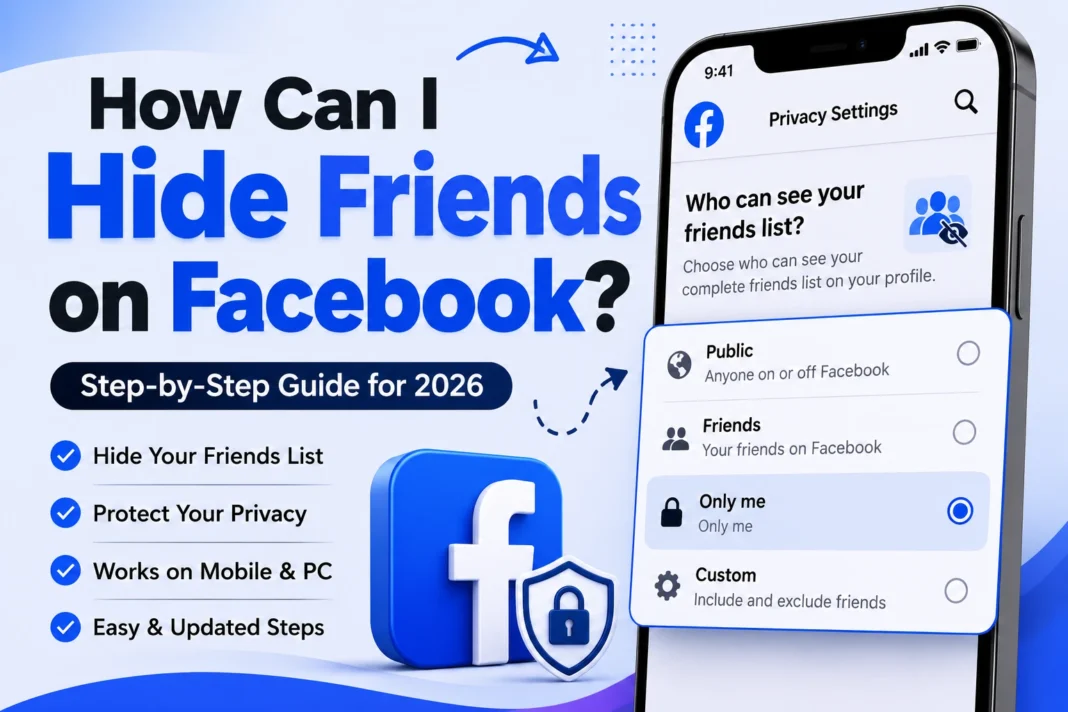

If you want to hide your Facebook friends list, open Facebook → Settings & privacy → Settings → Audience and visibility → How people find and contact you → Who can see your friends list? Then choose Only me.
This prevents other people from opening your full friends list from your profile. Facebook also provides other audience options, such as Friends and custom privacy choices.
However, there is an important limitation: hiding your friends list does not necessarily hide every friendship connection on Facebook. Facebook says people may still see mutual friends, and your friends control the visibility of their own friends lists.
Can You Really Hide Your Friends List on Facebook?
Yes. Facebook lets you control who can see the Friends section of your profile.
The strongest privacy option is Only me. With this setting, other people cannot open your complete friends list from your profile.
This is useful if you don’t want strangers, acquaintances, coworkers, or other Facebook users browsing through your connections.
Facebook’s default behavior is important to understand: the Friends section can be public unless you change its audience.
But hiding your list isn’t the same as making every friendship invisible across Facebook.
For example, Facebook notes that:
- People may still see mutual friends.
- Your friends control the visibility of their own friends lists.
- A friendship can potentially be visible from another person’s profile.
- Your friends-list setting controls the Friends section on your profile, not every place where Facebook can display a connection.
That distinction is one of the most important things to understand before changing the setting.
How to Hide Your Friends List on Facebook
The basic process is similar whether you’re using Facebook on a phone or computer, although the location of menus can change as Facebook updates its interface.
Step 1: Open Facebook Settings
Log in to your Facebook account and open Settings & privacy.
Then select Settings.
Step 2: Find Audience and Visibility
Inside Settings, look for the Audience and visibility section.
Facebook places several privacy controls in this area, including settings related to your profile, posts, stories, followers, tagging, blocking, and how people find and contact you.
Step 3: Open “How people find and contact you”
Select:
How people find and contact you
This section contains controls for how other people can discover and connect with your Facebook account.
Step 4: Select “Who can see your friends list?”
Find:
Who can see your friends list?
Open the audience selector.
Step 5: Choose “Only me”
Select:
Only me
Your complete Facebook friends list will now be restricted to you from your profile.
Facebook’s official instructions specifically identify this setting as the control for deciding who can access your friends list.
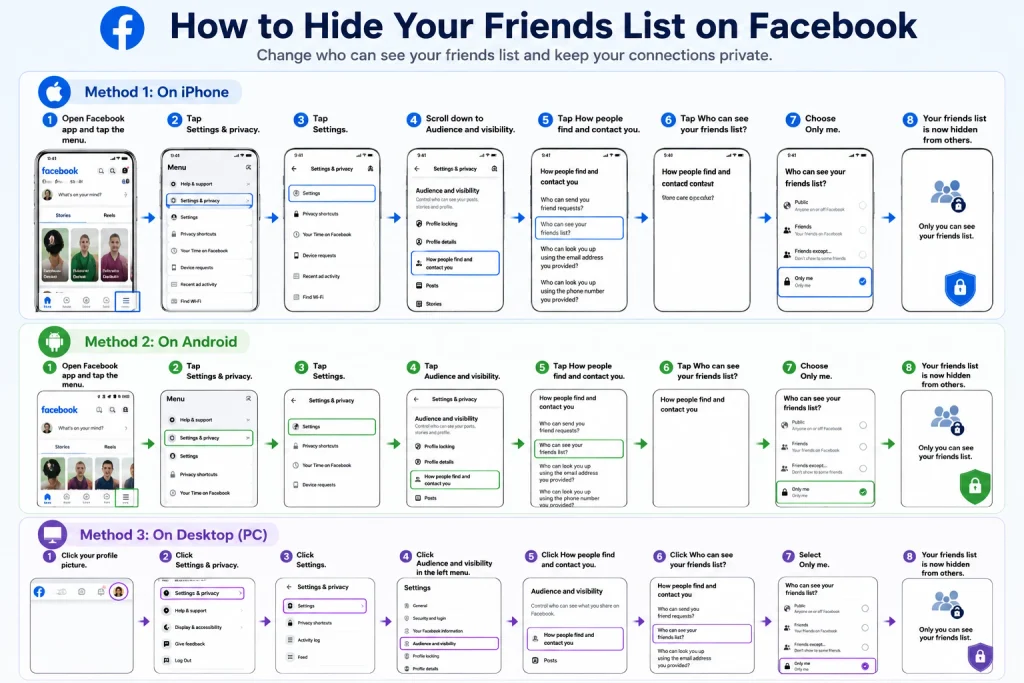
How to Hide Friends on Facebook From Your Phone
If you’re searching for how to hide friends on Facebook mobile, you can change the setting through the Facebook app.
The exact placement of the menu icon can vary between iPhone, Android, and different versions of the Facebook app, but the privacy setting you’re looking for is the same.
On iPhone
- Open the Facebook app.
- Open the menu/profile section.
- Tap Settings & privacy.
- Tap Settings.
- Find Audience and visibility.
- Tap How people find and contact you.
- Select Who can see your friends list?
- Choose Only me.
If your Facebook app looks slightly different, use the Settings search feature and search for friends list or Who can see your friends list?
The interface can change, but the important setting is the audience selector for your Friends section.
On Android
On Android, the process is essentially the same:
- Open Facebook.
- Open the menu.
- Go to Settings & privacy.
- Select Settings.
- Scroll to Audience and visibility.
- Open How people find and contact you.
- Tap Who can see your friends list?
- Select Only me.
Some Android versions may place the menu icon in a different location. Don’t worry if the screen doesn’t look exactly like a tutorial you saw online—the setting itself is what matters.
How to Hide Your Facebook Friends List on a Computer
If you use Facebook from a desktop or laptop browser, you can change the setting from Facebook’s Settings page.
Follow these steps:
- Open Facebook and log in.
- Click your profile picture.
- Select Settings & privacy.
- Click Settings.
- Look for Audience and visibility.
- Select How people find and contact you.
- Find Who can see your friends list?
- Change the audience to Only me.
Facebook’s Help Center gives this same general route for changing the visibility of the Friends section.
What Does “Only Me” Do on Facebook?
Only me is the most private standard audience option for your friends list.
When you select it, other people cannot browse your complete Friends section from your profile.
It does not:
- Unfriend your existing friends
- Delete your friendships
- Block anyone
- Prevent you from sending or receiving friend requests
- Automatically hide every interaction involving your friends
- Remove mutual friends that Facebook may display elsewhere
Think of the setting as controlling who can see your complete friends list on your profile, rather than deleting evidence that you have Facebook connections.
Can I Hide My Friends List From Specific People?
This depends on the audience options Facebook makes available to your account.
Facebook’s audience controls can include options for limiting visibility to particular groups or people. Its general privacy documentation describes options such as Friends, Friends except, Specific friends, and Custom for controlling audiences.
If your account offers a relevant custom option for the friends-list audience, you can use it to restrict visibility rather than choosing Only me.
However, if your goal is simply:
“I don’t want anyone else to see my friends list.”
then Only me is the simplest choice.
If your goal is:
“I want my friends to see my list, but I don’t want one particular person to see it.”
look for a Custom or Friends except option if it is available in your version of Facebook.
Can I Hide One Friend From My Facebook Friends List?
This is where Facebook privacy can be confusing.
Facebook’s friends-list privacy setting controls who can see your friends list. It isn’t a simple switch that removes one individual friend from the list while everyone else remains able to browse it.
If you want to prevent someone from seeing your complete list, changing the audience for the Friends section is the appropriate privacy control.
If the issue is a particular person’s access to your profile, you may also need to review other privacy controls, such as blocking, profile visibility, posts, stories, and tagging.
Facebook groups these different controls under its broader privacy settings.
Will Mutual Friends Still Be Visible?
Possibly, yes.
This is one of the most important limitations to understand.
Suppose you set your Facebook friends list to Only me.
Someone visiting your profile may still see that you have certain mutual friends with them.
Facebook explicitly states that people may see mutual friends when they visit your profile.
So if you’re trying to completely disappear from someone’s social graph, hiding your friends list alone won’t necessarily accomplish that.
Example
Imagine:
- You are friends with Sarah.
- John is also friends with Sarah.
- You set your friends list to Only me.
John may still see Sarah as a mutual friend.
Your full list is hidden, but the mutual connection can still be displayed.
Can Someone See That We Are Friends if My List Is Hidden?
Potentially.
Hiding your friends list doesn’t give you complete control over what another person displays on their profile.
Facebook explains that your friends control who can see their friendships on their own profiles.
This means you should think of Facebook friendship visibility as something that can involve both sides.
You can control your friends-list audience, but you cannot necessarily control the privacy settings of another person’s profile.
Does Hiding My Friends List Hide My Friend Count?
Not necessarily.
Facebook’s documented friends-list privacy control is designed to control access to the Friends section. It is not documented as a separate universal switch specifically designed to hide every numerical indication of how many friends you have.
If your primary goal is privacy, set:
Who can see your friends list? → Only me
Then use Facebook’s Privacy Checkup and other audience controls to review what else is visible on your profile. Facebook recommends Privacy Checkup as a way to review and manage privacy settings.
Why Can’t I Find “Who Can See Your Friends List?”
Facebook changes its interface periodically, so the location of settings can look different from one account, device, or app version to another.
If you cannot immediately find the setting, try this route:
Settings & privacy → Settings → Audience and visibility → How people find and contact you
Then look for:
Who can see your friends list?
You can also use Facebook’s settings search feature and search for terms such as:
friends list
or
Who can see your friends list?
The underlying privacy control remains the important part, even if the navigation changes.
Which Facebook Friends List Setting Should You Choose?
Facebook gives you different audience choices depending on the account and setting.
Here’s a simple way to decide:
| Setting | Who can see the full list? | Best for |
|---|---|---|
| Public | Anyone | Maximum visibility |
| Friends | Your Facebook friends | Normal social sharing |
| Only me | You | Maximum friends-list privacy |
| Custom / other limited options | Selected audiences | More specific privacy needs |
If you’re asking “How can I hide friends on Facebook from everyone?”, choose Only me.
If you simply don’t want strangers browsing your connections but you’re comfortable with Facebook friends seeing them, Friends may be enough.
What Else Should You Check for Better Facebook Privacy?
Hiding your friends list is only one part of your Facebook privacy settings.
If you’re trying to make your profile more private, review these areas as well:
Posts
Check who can see your current and future posts.
Stories
Review who can see your Facebook stories.
Profile and tagging
Control who can post on your profile and how tagged posts appear.
Followers and public content
Review who can follow you and interact with your public information.
Friend requests
Facebook allows you to control who can send you friend requests, including options such as Everyone or Friends of friends.
Blocking
If you’re dealing with a specific person and don’t want them interacting with your account, review Facebook’s blocking controls.
Facebook provides these different controls under its broader Audience and visibility settings.
How to Check What Other People Can See
After changing your privacy settings, it’s a good idea to look at your profile from another perspective.
Facebook provides a View As feature for checking the public appearance of your profile.
This can help you verify whether your friends section and other information are appearing the way you expect.
Remember that the result may differ depending on whether someone is a friend, a non-friend, or has mutual connections with you.
Does Hiding Your Friends List Unfriend Anyone?
No.
Changing Who can see your friends list? only changes the visibility of that information.
It doesn’t remove your existing Facebook friends.
You don’t need to send a new friend request, and your existing friendships remain in place.
Does Facebook Notify People When I Hide My Friends List?
Changing your friends-list audience is a privacy-setting change, not an unfriend action.
You are simply changing who can access the Friends section from your profile.
If you’re concerned about privacy, the important thing is to remember that hiding the list does not necessarily make mutual friendships invisible elsewhere on Facebook.
What Happens if My Friend Has a Public Friends List?
This is another important limitation.
Suppose you hide your friends list by selecting Only me, but your friend keeps their own friends list public.
Someone may still be able to discover the friendship through your friend’s profile.
Facebook explicitly explains that each friend controls who can see their friendships on their own profile.
Therefore, you can control your side of the friends-list visibility, but you cannot force another person to use the same privacy setting.
Final Takeaway
If you’ve been searching “how can I hide friends on Facebook,” the answer is straightforward: change the audience for your Friends section to Only me.
The quickest path is:
Facebook → Settings & privacy → Settings → Audience and visibility → How people find and contact you → Who can see your friends list? → Only me
Just remember that this doesn’t make every Facebook friendship invisible. Mutual friends may still appear, and another person’s privacy settings can affect how your connection is displayed on their profile.
For the strongest overall privacy, don’t stop after hiding your friends list. Review your posts, stories, profile and tagging, followers, friend requests, and blocking settings as well. Facebook provides these controls through its broader privacy settings.
Frequently Asked Questions
How can I hide friends on Facebook?
Go to Settings & privacy → Settings → Audience and visibility → How people find and contact you → Who can see your friends list? Then select Only me.
How do I hide my friends list from everyone on Facebook?
Set the friends-list audience to Only me. This prevents other people from viewing your complete Friends section from your profile.
Can I hide my Facebook friends from one person?
If Facebook provides a Custom or Friends except audience option for your account, you may be able to exclude particular people. Otherwise, selecting Only me hides the complete list from everyone except you.
Can my friends still see my friends list?
If you select Only me, they cannot open your complete friends list from your profile. However, Facebook may still show mutual friends or friendship information elsewhere.
Why can someone still see a mutual friend after I hide my friends list?
Facebook says people may still see mutual friends even when your full Friends section is restricted.
Can I hide my friends list on Facebook from my phone?
Yes. Open Facebook’s settings and navigate to Audience and visibility → How people find and contact you → Who can see your friends list?, then choose Only me.
Can I hide my Facebook friends list on iPhone?
Yes. The Facebook iPhone app provides privacy controls for your friends list. The exact menu placement can change between app versions, but look under Settings & privacy → Settings → Audience and visibility.
Can I hide my Facebook friends list on Android?
Yes. On Android, open Facebook Settings and look under Audience and visibility → How people find and contact you → Who can see your friends list?