


If your home internet stops working, you might wonder whether the problem is your modem or router. Although people often use these terms interchangeably, they serve different purposes.
A modem connects your home network to your internet service provider (ISP), while a router connects your devices and manages traffic between them.
Most homes need both functions to access the internet over a traditional broadband connection.
You can use two separate devices or a modem-router combo that combines both into one unit. The right setup depends on your internet service, Wi-Fi needs, and the equipment your provider supports.
What Is the Difference Between a Modem and a Router?
A modem establishes the connection between your internet service provider and your home network. A router distributes that connection to your devices, either wirelessly through Wi-Fi or through Ethernet cables.
Here is a quick comparison of their main functions:
| Feature | Modem | Router |
|---|---|---|
| Main purpose | Connects to the ISP | Connects and manages local devices |
| Primary connection | ISP network | Modem or another internet source |
| Wi-Fi | Usually not included in a standalone modem | Commonly included in a Wi-Fi router |
| Device management | Limited local network management | Routes traffic between connected devices |
| Network role | Provides the internet connection | Shares and manages network access |
| Typical ports | ISP-facing connection and Ethernet output | WAN port and LAN ports |
| Replacement considerations | ISP compatibility and supported internet technology | Wi-Fi coverage, speed, and network features |
A simple way to remember the difference is that the modem brings the internet connection into your home, while the router makes that connection available to your devices.
What Does a Modem Do?
A modem connects to your ISP’s network and establishes the internet connection your home network uses. The type of modem or connection equipment you need depends on how your provider delivers internet service.
For example, a cable modem communicates with your ISP through a coaxial cable. A DSL modem uses a telephone line, while fiber internet commonly uses an optical network terminal (ONT) to convert the optical signal into a connection your networking equipment can use.
A modem or equivalent access device helps establish the connection, but a standalone modem does not normally create a Wi-Fi network for your phone, laptop, and other wireless devices.
A modem is responsible for:
- Establishing communication with the internet service provider.
- Supporting the connection technology used by your broadband service.
- Providing an internet connection to a directly connected device or router.
- Maintaining the connection according to the provider’s network requirements.
Your ISP may supply a modem, rent one to you, or allow you to purchase a compatible model. Before buying your own, check whether your provider supports it and whether your internet plan requires specific hardware.
What Does a Router Do?
A router connects devices within your home network and directs data between them. A typical home Wi-Fi router allows smartphones, computers, smart TVs, gaming consoles, and other devices to share the same internet connection.
When you connect your phone to Wi-Fi, for example, the router forwards your request toward the internet through its WAN connection. When the response returns, the router directs the data to your phone rather than sending it to another device on your network.
Most consumer routers also provide features such as:
- Wi-Fi connectivity: Connects wireless devices without requiring an Ethernet cable.
- Ethernet ports: Provide wired connections for computers, consoles, and other equipment.
- DHCP: Automatically assigns local IP addresses to connected devices.
- Network Address Translation (NAT): Allows multiple devices using private IP addresses to share a public IPv4 address in a typical home setup.
- Network security: May include a firewall, guest network, access controls, and other protective features.
A router does not automatically create an internet connection simply because it broadcasts Wi-Fi. It needs an upstream connection, such as one provided by a modem, an ONT, or another supported network source.
How Do a Modem and Router Work Together?
A modem and router work together by establishing an internet connection and distributing it across your local network.
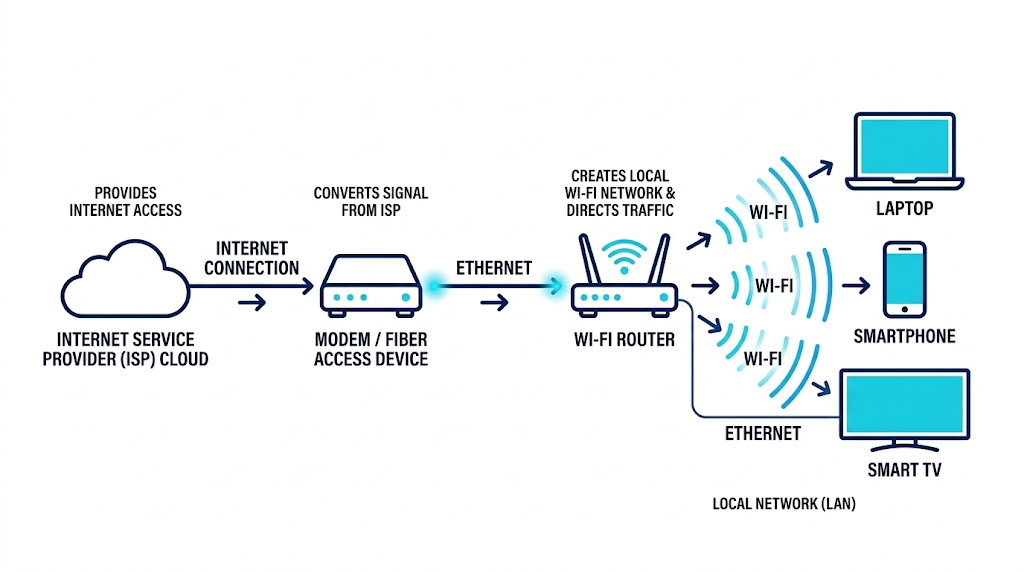
Consider what happens when you open a website on your laptop:
- The modem or access device establishes the internet connection. It connects your home equipment to the ISP’s network.
- The router receives the upstream connection. It manages your local network and determines where outgoing data should go.
- Your laptop sends a request. The router forwards the request toward the internet.
- The website sends a response. The returning data travels through the network and reaches your router.
- The router directs the response to your laptop. Other connected devices can continue using the same internet connection.
In a traditional setup, the modem connects to the router’s WAN port using an Ethernet cable. Your devices then connect to the router through Wi-Fi or its LAN ports.
Modem vs. Router vs. Modem-Router Combo
A modem, router, and modem-router combo serve related but distinct roles. A modem establishes the ISP connection, a router manages the local network, and a combo device combines both functions in one piece of equipment.
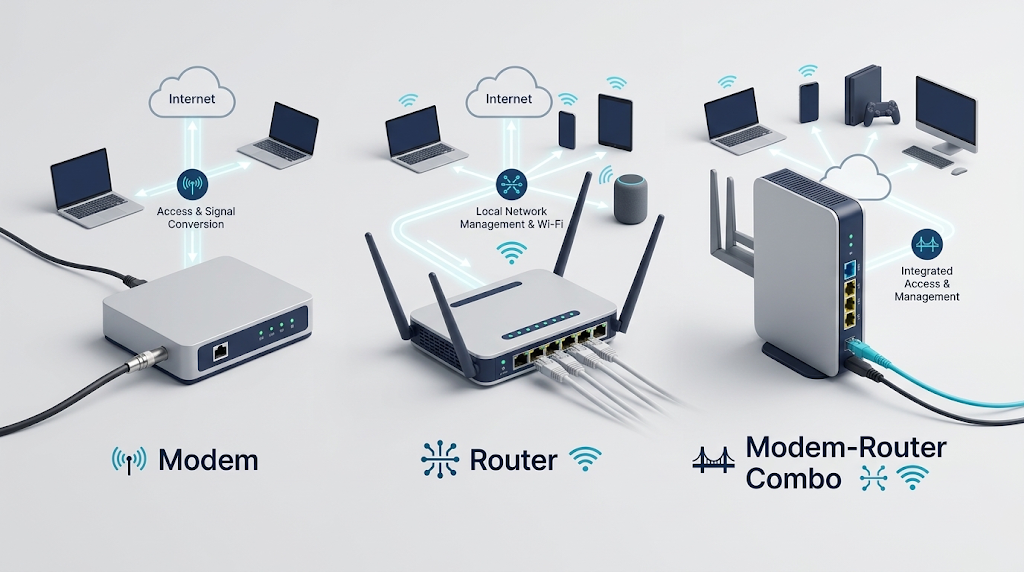
| Device | What it does | Best suited for |
|---|---|---|
| Modem | Establishes the ISP connection | Providing internet access to a router or directly connected device |
| Router | Connects and manages local devices | Sharing an existing internet connection |
| Modem-router combo | Combines the modem and router functions | Simplifying a compatible home internet setup |
| Fiber ONT | Terminates the fiber connection and provides a network interface | Fiber broadband installations |
What Is a Modem-Router Combo?
A modem-router combo, sometimes called a gateway, combines the internet access function and local routing function in one device. Many ISP-provided gateways also include Wi-Fi, Ethernet ports, and basic network security features.
This setup reduces the number of devices, power adapters, and cables you need. It can also make installation easier because your ISP may configure and manage the equipment for you.
However, a combo device can limit your upgrade options. If its Wi-Fi coverage becomes inadequate, you may need to add a separate access point or use a compatible router. Replacing the entire unit may also be necessary if one of its integrated functions becomes outdated.
Is a Combo Device Better Than Separate Devices?
Neither setup is universally better. A modem-router combo is convenient for users who want a simple installation, while separate devices offer greater flexibility when upgrading or troubleshooting a home network.
Choose a modem-router combo if:
- You prefer fewer devices and cables.
- Your ISP supports the equipment.
- Its Wi-Fi coverage and features meet your needs.
- You want a straightforward setup for everyday browsing and streaming.
Choose separate devices if:
- You want to upgrade your Wi-Fi without replacing the modem.
- You need more control over network settings.
- Your home requires advanced routing or wireless features.
- You want to replace a faulty device without replacing the other one.
There is one important detail for fiber customers: an ONT may already provide the fiber termination function. In that case, you generally need a compatible router rather than a traditional cable or DSL modem. Follow your ISP’s requirements because some fiber installations also use integrated gateways.
Does a Modem or Router Affect Internet Speed?
Both devices can affect internet performance, but they do so in different ways. A modem or access device must support your internet service and its speed tier, while the router must handle your traffic and provide adequate wired or wireless performance.
Your ISP plan, network congestion, Wi-Fi interference, device capabilities, and the distance between your device and router can also affect actual speeds.
Can a Router Slow Down Your Internet?
Yes. An outdated or underpowered router can limit internet speeds, particularly when multiple devices are connected or when you use a fast broadband plan.
For example, a router with a 100 Mbps Ethernet WAN port cannot deliver a full gigabit internet connection through that port. Similarly, an older Wi-Fi standard, weak signal, or congested wireless channel can reduce the speed your phone or laptop receives, even when your ISP connection is fast.
Before upgrading, check the router’s WAN and LAN port speeds, supported Wi-Fi standards, coverage, and performance under multiple-device use.
A newer router will not necessarily increase your internet speed if your current router already handles your plan adequately.
Can a Modem Limit Your Internet Speed?
Yes. A modem that does not support your ISP’s required technology or speed tier may prevent you from receiving the full performance of your internet plan.
For cable broadband, check the modem’s DOCSIS version and your provider’s compatibility requirements. DOCSIS 3.1 supports many gigabit cable plans, but the speed you receive still depends on the modem model, ISP configuration, and service tier.
For DSL and fiber connections, the required equipment differs. Fiber customers should check their ONT and router requirements rather than assuming they need a conventional modem.
If your internet is consistently slower than expected, test the connection using Ethernet where possible. A wired test can help distinguish a wireless performance problem from a problem with the broadband connection itself.
Do You Need a Modem and a Router?
Most homes using traditional cable or DSL broadband need a modem and a router, either as separate devices or combined in a gateway. Fiber and other internet technologies may use different access equipment, so the exact setup depends on your provider.
Can You Use a Modem Without a Router?
Yes. You can often connect a computer directly to a modem’s Ethernet port if the modem and ISP support that setup. However, this arrangement usually provides connectivity to only the directly connected device and does not give your home a shared Wi-Fi network.
Directly connecting a computer also removes the router’s network management and additional security features. Your computer may be exposed more directly to the internet, depending on the equipment and connection configuration.
For everyday home use, a router is generally the better option when you want multiple devices to share the connection.
Can You Use a Router Without a Modem?
Yes, but the router still needs an upstream network connection if you want internet access.
For example, a router can connect to an ONT in a fiber installation, work behind an ISP gateway configured for routing or bridge mode, or operate as an access point on an existing network. A router can also create a local network without internet access.
Simply turning on a router does not provide internet service. Its capabilities depend on the source of the network connection and its configuration.
Do Fiber Internet Connections Need a Modem?
Fiber internet commonly uses an optical network terminal (ONT) instead of a traditional cable or DSL modem. The ONT terminates the fiber connection and provides an interface that connects to your router or gateway.
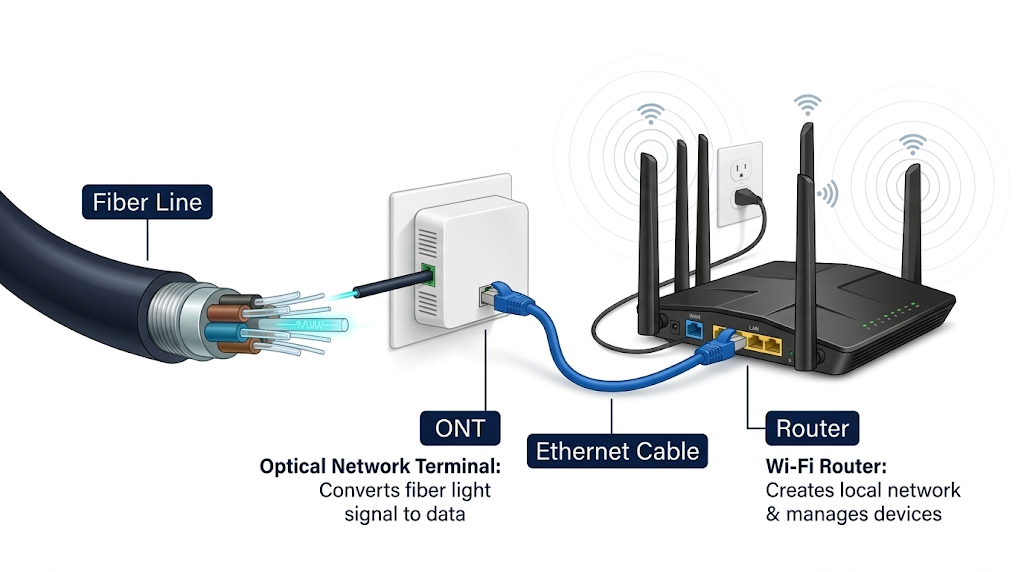
In a typical fiber setup, the connection looks like this:
Fiber line → ONT → Router → Your devices
Some providers combine the ONT and router functions in one unit. Others install a separate ONT and let you use a compatible router. Check your provider’s installation requirements before purchasing equipment.
How to Choose the Right Modem and Router
Choose equipment based on your internet technology, ISP requirements, speed plan, home layout, and connected devices. Buying the most expensive model is not necessarily the best choice if your broadband plan or household needs do not require its features.
What Should You Check for ISP Compatibility?
Start by identifying the type of internet connection you have. Cable, DSL, and fiber services use different access technologies, so equipment designed for one service may not work with another.
Before buying a modem, check:
- ISP approval: Confirm that your provider supports the exact model.
- Connection technology: Match the equipment to cable, DSL, or your provider’s fiber setup.
- Speed tier: Ensure the equipment supports your subscribed plan.
- Activation requirements: Check whether your ISP needs to register or activate the device.
- Additional requirements: Determine whether you need an ONT, voice service support, or other provider-specific features.
When choosing a router, look at its Ethernet port speeds, Wi-Fi capabilities, coverage, security updates, and capacity for your expected number of devices. Wi-Fi 6, Wi-Fi 6E, and Wi-Fi 7 offer different capabilities, but compatible client devices and suitable operating conditions are also necessary to benefit from newer standards.
For a large home, a mesh Wi-Fi system or additional access point may provide better coverage than replacing the modem. Remember that a mesh system expands wireless coverage; it does not replace the ISP connection equipment unless the system includes the required functionality.
Should You Upgrade Your Modem or Router First?
Upgrade the device that is causing the limitation rather than automatically replacing both.
If your wired connection reaches the speed promised by your plan but Wi-Fi is slow in distant rooms, investigate the router’s placement, wireless interference, and coverage first. A better router or mesh system may solve the problem.
If a wired test is also slow, check the modem or ONT, service plan, and ISP connection. Confirm that your access equipment supports the subscribed speed and that there is no provider outage or signal issue.
Replace a modem when it is incompatible, unsupported, faulty, or unable to meet your plan’s requirements. Replace a router when it cannot provide sufficient speed, coverage, capacity, or security support.
This approach avoids spending money on equipment that will not address the actual problem.
How to Troubleshoot Modem and Router Problems
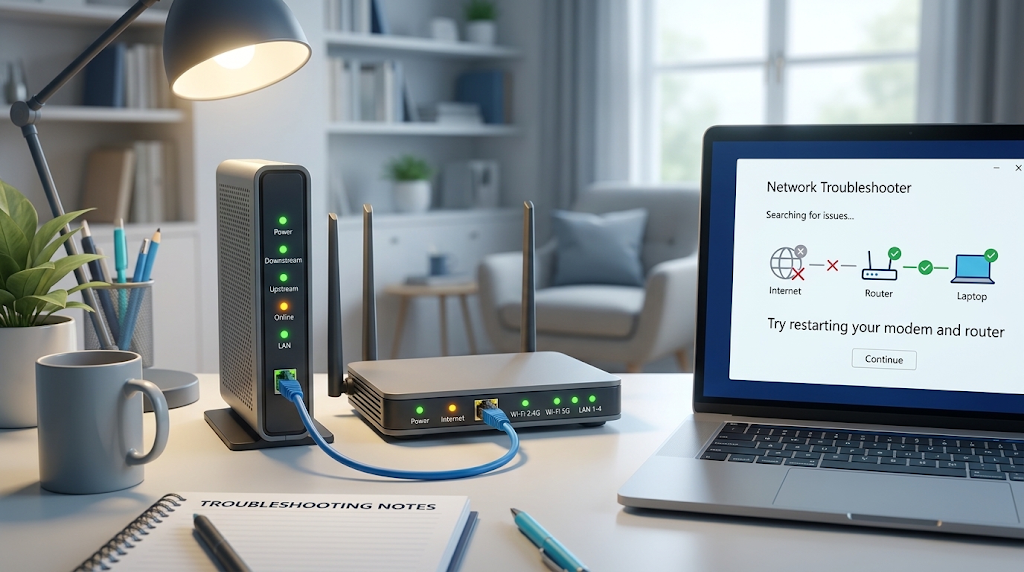
When your internet stops working, checking the connection in the right order can help you identify whether the problem is with your Wi-Fi, router, access equipment, or ISP.
Why Is Wi-Fi Connected but There Is No Internet?
A device can connect to your router’s Wi-Fi network even when the router cannot reach the internet. The wireless connection confirms communication between your device and router, not that the ISP connection is working.
Common causes include:
- An ISP outage or service interruption.
- A disconnected or faulty Ethernet cable between the modem and router.
- A modem or ONT that has lost its connection.
- An incorrect router configuration.
- An expired or failed ISP session, depending on the connection type.
Try these steps:
- Check the modem or ONT status lights and look for warning indicators described in the device manual.
- Confirm that the cable between the access device and router is securely connected.
- Test another device to see whether the issue affects the entire network.
- Restart the equipment using the sequence recommended by your ISP. For separate devices, this commonly means restarting the modem or ONT first, waiting for its connection to stabilize, and then restarting the router.
- Contact your ISP if the access device cannot establish a connection or the problem continues.
Avoid factory-resetting your equipment as an initial step. A factory reset can erase connection settings and require you to configure the device again.
How Can You Identify Whether the Modem or Router Is Causing Slow Internet?
Start by testing internet speed on a computer connected directly to the router with Ethernet. If possible, compare the result with a test performed through Wi-Fi in the same location.
If the wired connection is fast but Wi-Fi is slow, the router’s wireless performance, placement, or interference may be responsible. If both tests are slow, investigate the ISP connection, access equipment, router configuration, and service plan.
For a more precise diagnosis:
- Check whether the problem affects one device or every device.
- Compare performance near the router and in distant rooms.
- Inspect Ethernet cables and port speeds.
- Review modem or ONT status indicators.
- Check for ISP outages and service alerts.
- Repeat tests at different times to identify possible congestion.
A single speed test cannot always identify the faulty component. If the problem persists, your ISP can check the line, signal levels, and connection status to narrow down the cause.
Frequently Asked Questions
Can I plug my computer directly into a modem?
Yes, if your ISP and modem support a direct Ethernet connection. However, your computer may not have the additional network protection provided by a router, and the setup usually does not provide shared Wi-Fi for other devices.
Does every home internet connection need a modem?
No. Traditional cable and DSL services generally use a modem, while fiber installations commonly use an ONT. Fixed wireless and satellite services may use their own access equipment or gateways.
Can two routers share one modem?
Yes. You can connect two routers to one internet connection in supported configurations, but the correct setup depends on the equipment. Using both routers in normal routing mode can create double NAT, which may complicate gaming, port forwarding, and some remote-access applications.
Does a router need an Ethernet cable?
A typical router needs an upstream connection, often provided by an Ethernet cable from a modem or ONT. However, some routers can use wireless bridge, repeater, or mesh backhaul modes, depending on their capabilities and configuration.
Do a modem and router need to be from the same brand?
No. A separate modem and router do not generally need to share a brand. The modem must be compatible with your ISP, and the router must support the required network connection. Integrated gateways are different because their modem and router functions are built into the same unit.
How long do modems and routers typically last?
Their useful lifespan depends on reliability, hardware capabilities, firmware support, and changing internet requirements. Replace equipment when it becomes unreliable, loses security support, cannot meet your speed needs, or is no longer compatible with your provider rather than relying only on its age.
Final Words on Modem & Router
The main difference between a modem and a router is their role in your internet connection. A modem establishes the connection to your ISP, while a router distributes and manages that connection across your home network.
If you want a simple setup, a compatible modem-router combo can handle both jobs. If you prefer more control and easier upgrades, separate devices may be a better fit. Fiber customers should also check whether their installation uses an ONT instead of a traditional modem.
Before upgrading, identify the equipment you already have, confirm your ISP’s requirements, and determine whether the limitation comes from the broadband connection or your local Wi-Fi network. That will help you choose the right device without spending money unnecessarily.